





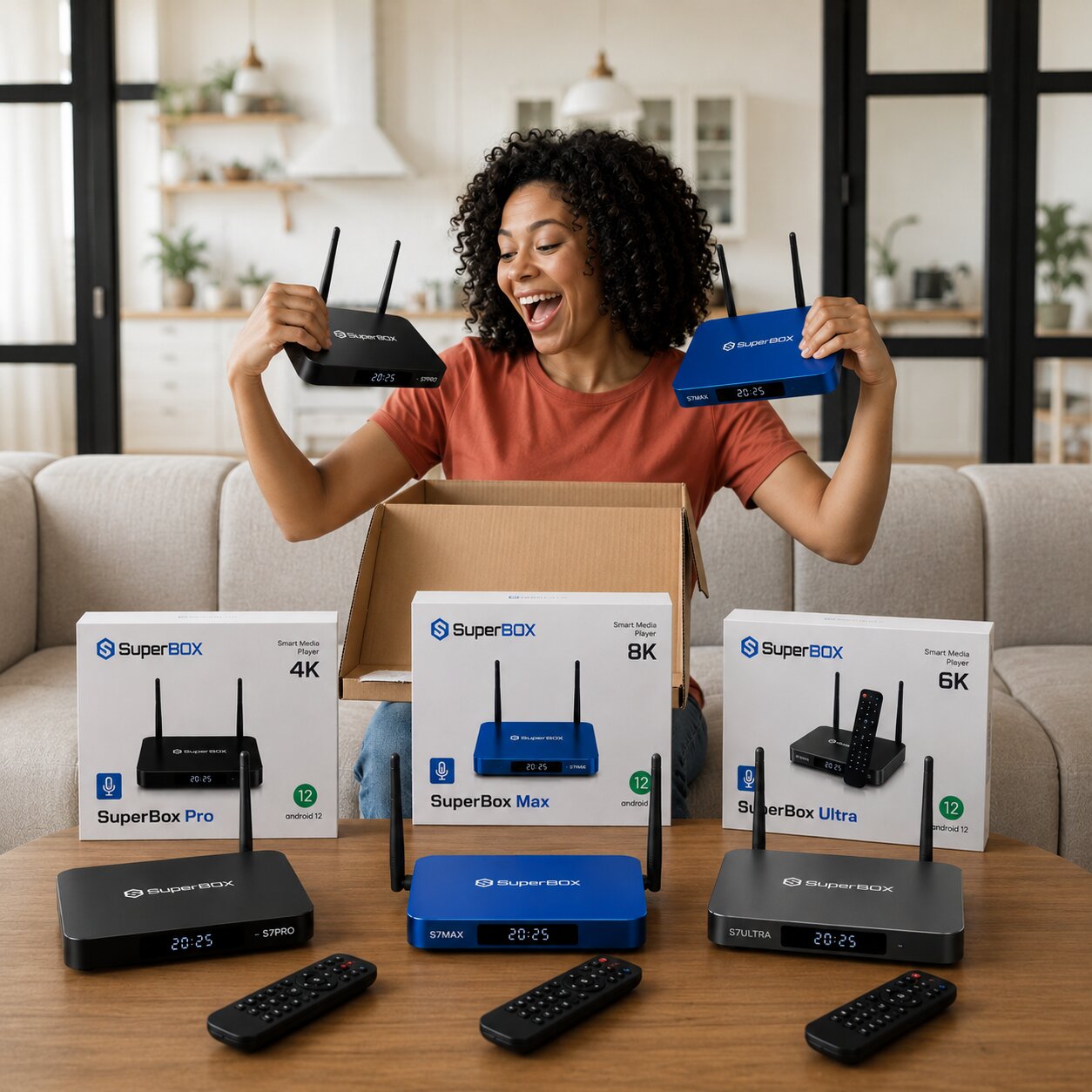
Are you ready to unlock the full potential of your new SuperBox S7 TV Box but feeling a bit overwhelmed with where to start? Many users find themselves wondering about the best way to set up their device, connect to the internet, install favorite apps, or even troubleshoot common issues.
Without a clear guide, you might miss out on the seamless 6K Ultra HD streaming and vast entertainment options your SuperBox S7 offers. This comprehensive guide from SuperBox Official Website is designed to walk you through every essential aspect of using your SuperBox S7, ensuring you get the most out of your home entertainment system.
Overview of Mastering Your SuperBox S7
The SuperBox S7 is a powerful Android TV Box, transforming any TV into a smart entertainment hub with its Android 12 OS, Quad-core ARM Cortex-A53 processor, and Mali-G31 MP2 GPU, along with 4GB RAM and 64GB storage.
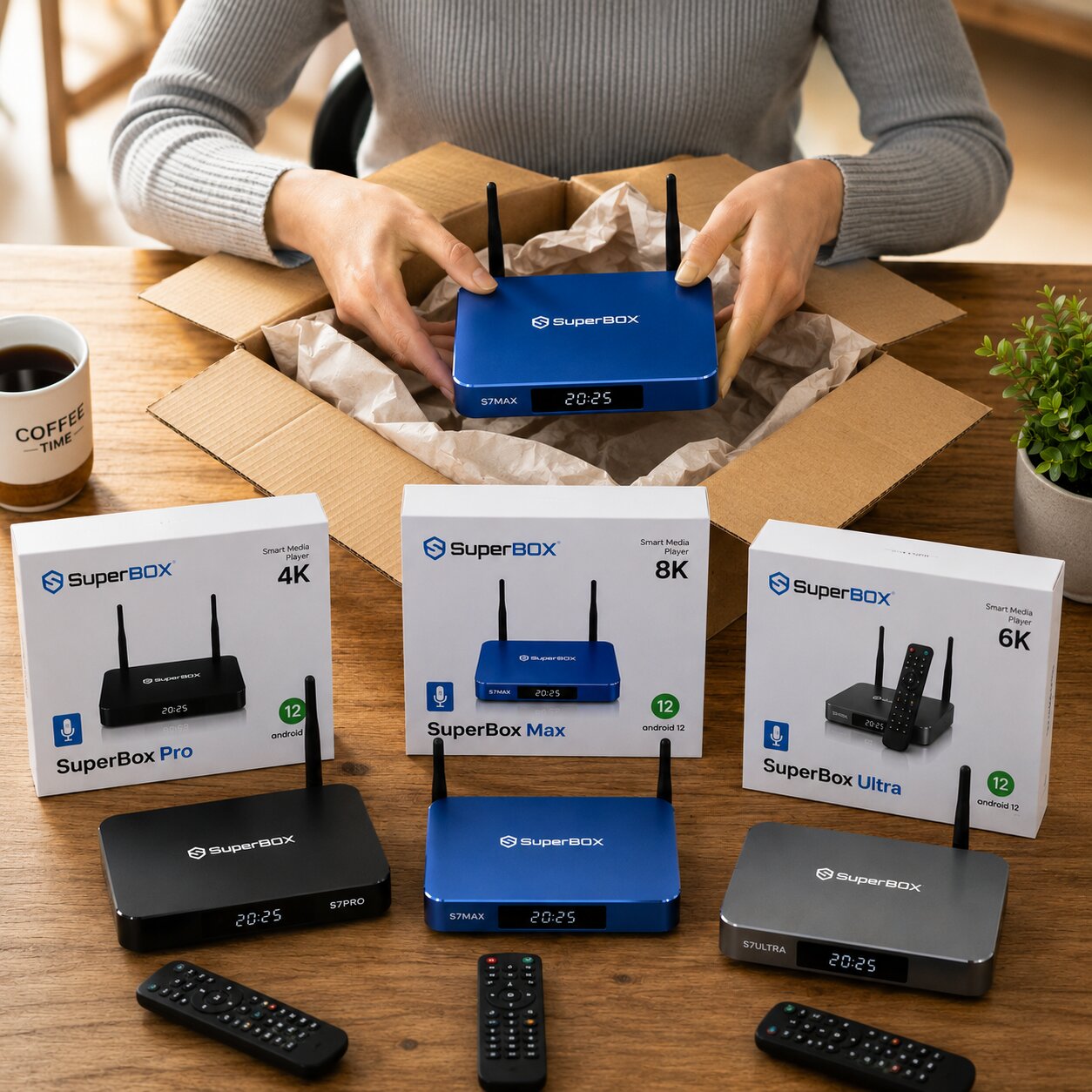
It supports stunning 6K@60fps video decoding, Dual-band WiFi 6, and Gigabit Ethernet for superior connectivity. Maximizing these features requires understanding its setup and functionalities.
This guide provides various approaches to leverage every capability, from initial setup to advanced troubleshooting, tailored to your specific needs for a superior streaming experience.
Quick Guide to SuperBox S7 Usage Essentials
This section offers a rapid overview of key functionalities and solutions for your SuperBox S7:
- Initial Setup & Connections: Essential for new users to unbox and connect their SuperBox S7 to a TV and power.
- Internet Connectivity: Crucial for a stable and fast connection via Wi-Fi 6 or Gigabit Ethernet, enabling seamless streaming.
- Remote Control & Navigation: Learn to efficiently control your SuperBox S7, including effective voice control remote usage.
- App Installation & Usage: Discover how to install apps on SuperBox S7, including popular streaming apps like Netflix and SuperBox’s proprietary Blue TV/VOD.
- Performance Optimization: Improve your device’s speed and fix SuperBox S7 buffering issues.
- Firmware Updates & Reset: Maintain device health or resolve persistent issues with updates or a factory reset.
- Advanced Features: Explore parental controls or expand storage via USB 3.0.
Before You Begin: Identifying Your SuperBox S7 Needs
To ensure you choose the most relevant guidance, consider your current situation or goal. Are you setting up your SuperBox S7 Max for the very first time, or are you troubleshooting SuperBox S7 freezing and lagging problems?
Identifying your needs helps you navigate directly to the most pertinent sections, saving time and enhancing your digital content experience.
Essential Preparations for Your SuperBox S7 Journey
Before diving into specific instructions, ensure you have the following basic items and conditions. You will need your SuperBox S7 unit, its remote control, HDMI cable, and Type-C power adapter.
Also, prepare a television with an available HDMI input, access to a stable internet connection (Wi-Fi network name and password, or an Ethernet cable), and a Google account for the Google Play Store to download streaming apps.
Detailed Guide to Using Your SuperBox S7
Method 1: Unboxing and Initial Setup
This method is crucial for all first-time users to get their SuperBox S7 up and running. It serves as your comprehensive SuperBox S7 setup guide.
- Carefully unbox your SuperBox S7 and its accessories.
- Connect one end of the HDMI cable to the HDMI 2.1 port on your SuperBox S7 and the other end to an available HDMI input on your TV.
- Connect the Type-C power adapter to the power port on the SuperBox S7 and then plug the adapter into a wall outlet.
- Power on your TV and select the correct HDMI input using your TV’s remote control. The SuperBox S7 should automatically power on.
- If the remote doesn’t respond, ensure batteries are correctly inserted. Some remotes might require pairing by holding specific buttons (e.g., “OK” and “Back” simultaneously) close to the box.
- Follow the on-screen prompts to select your preferred language, time zone, and display settings.
Method 2: Connecting Your SuperBox S7 to the Internet
This method is vital for accessing all online content and features of your SuperBox S7, providing your SuperBox S7 internet connection setup.
For Wi-Fi Connection (Dual-band WiFi 6):
- From the SuperBox S7 home screen, navigate to “Settings” (gear icon).
- Select “Network & Internet.”
- Turn on Wi-Fi if it’s not already enabled.
- Select your Wi-Fi network name (SSID) from the list.
- Enter your Wi-Fi password using the on-screen keyboard and remote.
- Click “Connect.”
For Ethernet Connection (1000Mbps Gigabit):
- Connect an Ethernet cable from your router or modem directly to the Gigabit Ethernet port on the back of your SuperBox S7.
- The SuperBox S7 will automatically detect the wired connection. In “Network & Internet” settings, “Ethernet” should show as “Connected.”
Method 3: Mastering Your SuperBox S7 Remote and User Interface
This method helps you navigate and control your SuperBox S7 effectively for daily interaction.
- Use the directional pad (up, down, left, right) to move between menu items and select options.
- Press the “OK” button to confirm selections.
- Use the “Back” button to return to the previous screen.
- Press the “Home” button to go directly to the main home screen.
- Look for a microphone button on your remote for voice control. Press and hold it, speak your command or search query, then release.
Method 4: Installing and Using Streaming Applications
This method is central to enjoying the vast entertainment options on your SuperBox S7.
For Google Play Store Apps:
- From the home screen, open the “Google Play Store” app and sign in with your Google account.
- Search for popular streaming services like Netflix, Amazon Prime Video, YouTube, Tubi, or Max.
- Select the desired app and click “Install.”
For SuperBox Proprietary Apps (Blue TV, Blue VOD):
- These apps are typically pre-loaded and found directly on the home screen or within an “Apps” folder.
- Open “Blue TV” for live TV channels.
- Open “Blue VOD” for on-demand movies and TV shows.
- To utilize the “7-day time shift,” while watching a live channel, look for an on-screen prompt or a specific button on your remote to access past programming.
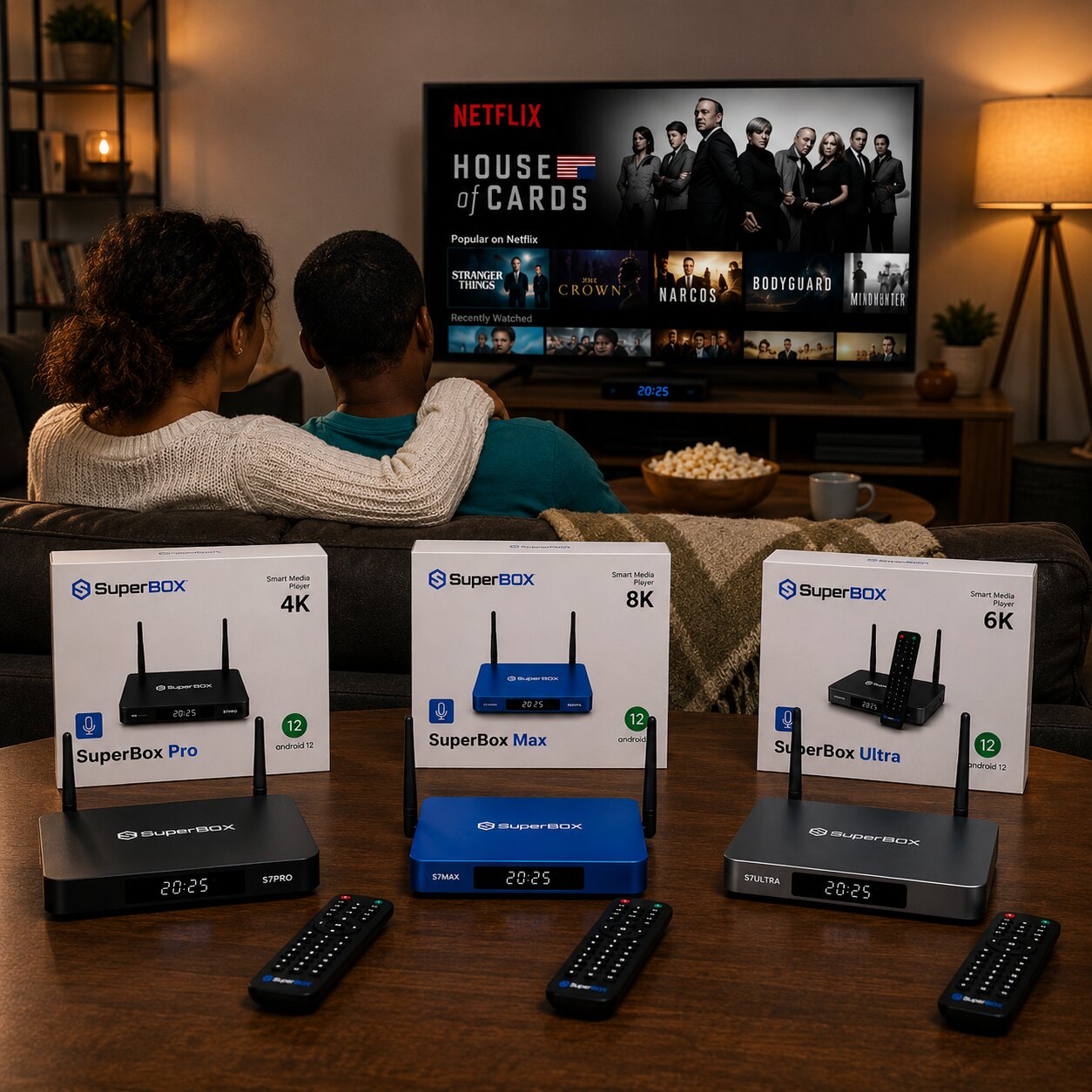
Method 5: Optimizing SuperBox S7 Performance
This method helps maintain the speed and responsiveness of your device, preventing lag and buffering.
- Clear Cache and Data: Go to “Settings” > “Apps,” select an app, and choose “Clear cache.” If problems persist, try “Clear data” (this will log you out).
- Close Background Apps: Some SuperBox models may have a “Clean Up” or “Booster” app on the home screen to free up 4GB RAM.
- Ensure Good Internet Connection: Verify your Wi-Fi signal strength or ensure your Gigabit Ethernet connection is stable.
Method 6: Updating Firmware and Factory Reset
This method is for maintaining your device with the latest software or resolving persistent, severe issues.
Update Firmware (OTA):
- Go to “Settings” > “About” or “Device Preferences.”
- Look for “System Update” or “OTA Update.” Check for available updates and follow the prompts.
Factory Reset:
- Warning: This will erase all installed apps, settings, and user data.
- Go to “Settings” > “System” or “Device Preferences” > “Reset options” > “Factory data reset.”
- Confirm your choice. The box will restart and go through the initial setup process again.
Method 7: Setting Up Parental Controls and Using USB 3.0
This method focuses on advanced features for family viewing and expanding media options.
Parental Controls: Navigate to “Settings” and look for “Security & Restrictions.” Here you can set up restrictions for apps and content based on ratings.
Using USB 3.0: Connect your USB drive to the USB 3.0 port. The device should detect the storage, allowing you to access media files through a file manager app.
Frequently Asked Questions About SuperBox S7?
How do I set up my SuperBox S7 Max for the first time?
Follow Method 1: Connect the HDMI cable to your TV and the power adapter to an outlet. Power on the TV, select the correct input, and follow the on-screen prompts for language and time zone.
Can I download popular streaming apps like Netflix on my SuperBox S7?
Yes, open the Google Play Store, sign in with your Google account, search for apps like Netflix, YouTube, or Amazon Prime Video, and click “Install.”
What is the best way to connect my SuperBox S7 to the internet?
Gigabit Ethernet provides the most stable connection for 6K streaming. However, Dual-band WiFi 6 is an excellent wireless option if a wired connection is not available.
My SuperBox S7 is buffering frequently; what should I do?
Restart the device, ensure your internet speed is sufficient, clear the app’s cache, or switch to a wired Gigabit Ethernet connection for better stability.
How do I clear the cache and data on my SuperBox S7 to improve speed?
Go to Settings > Apps, select the specific application causing issues, and choose “Clear cache.” This removes temporary files and can significantly boost performance.
What are Blue TV and Blue VOD, and how do they work?
These are SuperBox proprietary apps. Blue TV offers live TV channels, while Blue VOD provides on-demand movies and TV shows, both optimized for the S7 hardware.
Conclusion and Recommendations
Mastering your SuperBox S7 is about understanding its capabilities and knowing how to apply the right solutions for your needs. Always start by correctly identifying your situation, choosing the appropriate method, and consistently monitoring the results.
Regularly maintaining your device by clearing cache and updating firmware will ensure a consistently smooth streaming experience. Refer back to this guide from SuperBox Official Website whenever you encounter a new challenge.