





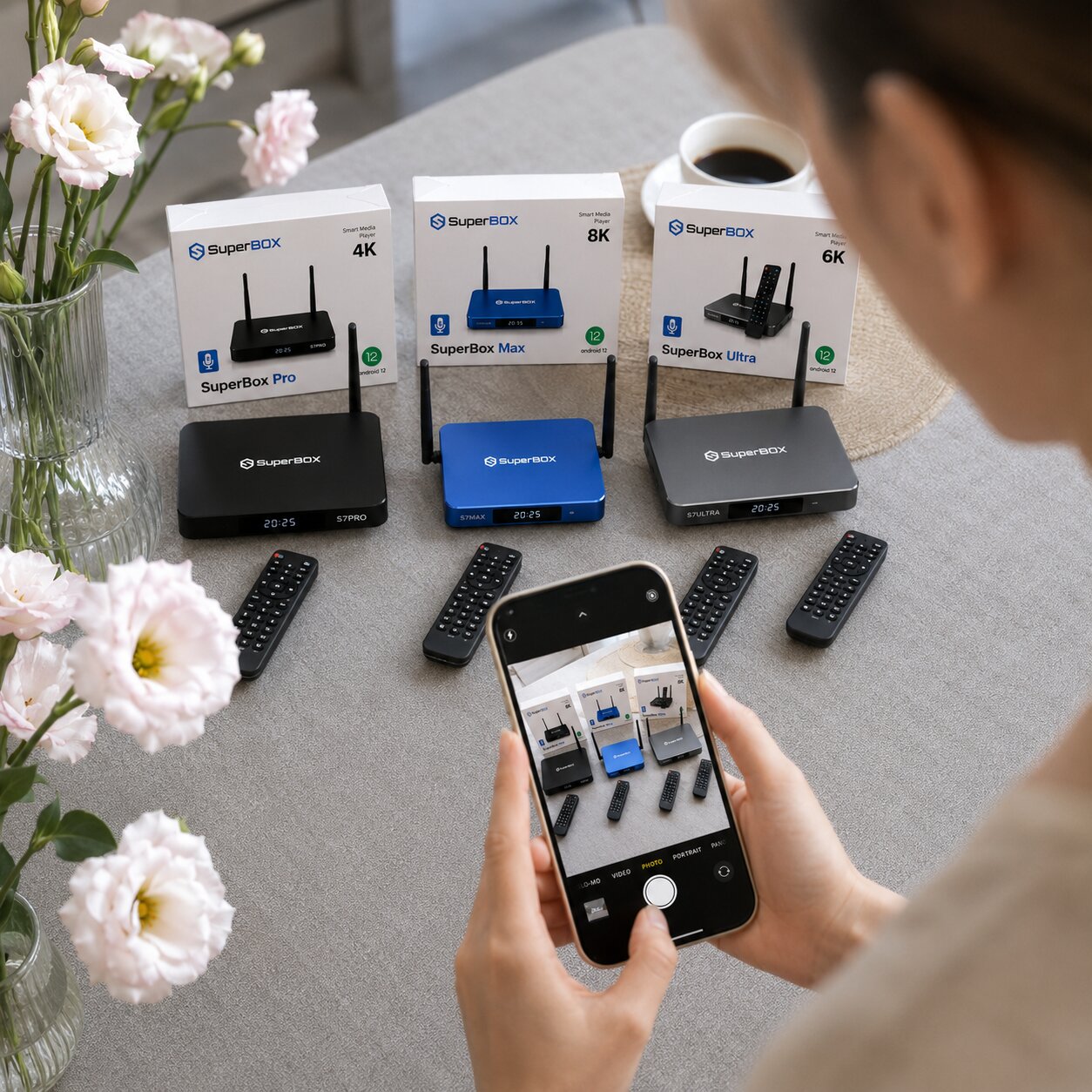
Your SuperBox S7 TV box is designed to deliver seamless entertainment, but sometimes, even the best devices can encounter hiccups like lagging, app crashes, or connectivity issues.
When these minor annoyances escalate, a factory reset often becomes the most effective solution to restore your device’s optimal performance. This guide from SuperBox Official Website will walk you through various methods to factory reset your SuperBox S7.
Overview of SuperBox S7 Factory Reset
Users often face frustrating issues with their SuperBox S7, such as the device running slow, frequent app crashes, or even getting stuck on the boot screen. These problems commonly arise from accumulated data, software glitches, or incorrect settings over time.
Ignoring these issues can lead to a degraded user experience, making your streaming device unreliable. A factory reset returns your Android TV box to its original system state by erasing all user data and settings.
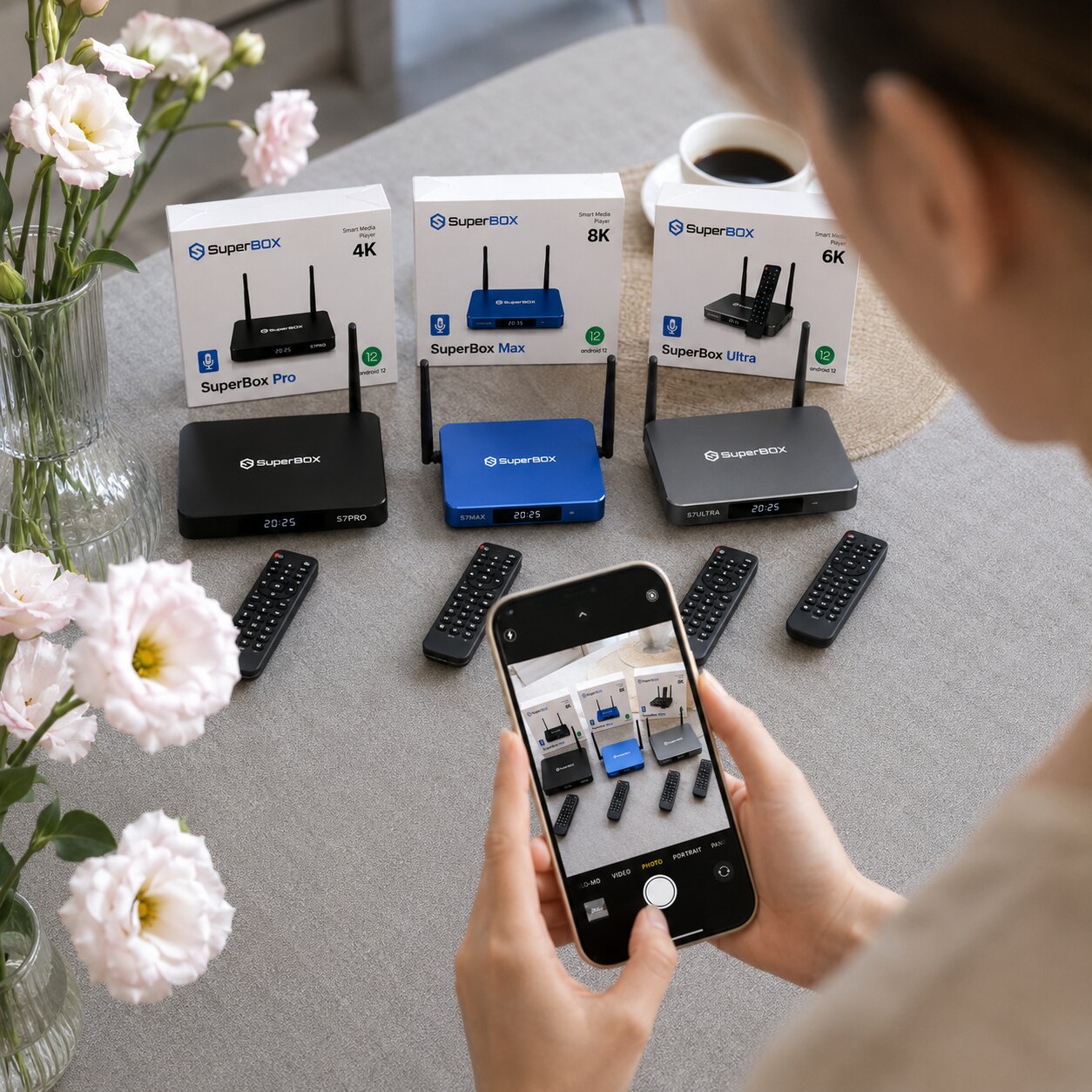
This process can effectively resolve persistent SuperBox S7 lagging fix needs, buffering issues, and frequent app crashes. There are multiple ways to perform a factory reset, depending on your device’s current state and functionality.
Quick Summary of SuperBox S7 Factory Reset Methods
This section is for those who want a rapid overview of their options.
- Method 1: Factory Reset via System Settings – Ideal for functional SuperBox S7 devices where you can navigate through the menus, offering a straightforward approach to restore default settings.
- Method 2: Hard Reset via Recovery Mode – Perfect for unresponsive SuperBox S7 devices, those stuck on the boot screen, or when you’ve forgotten your password.
Before You Start: Identify Your SuperBox S7’s Condition
To ensure you select the most appropriate factory reset method, it is crucial to first assess the state of your SuperBox S7. Consider these questions:
Is your SuperBox S7 responsive, allowing you to navigate through the home screen and settings menu? Is your remote control fully functional, or are you experiencing issues with it?
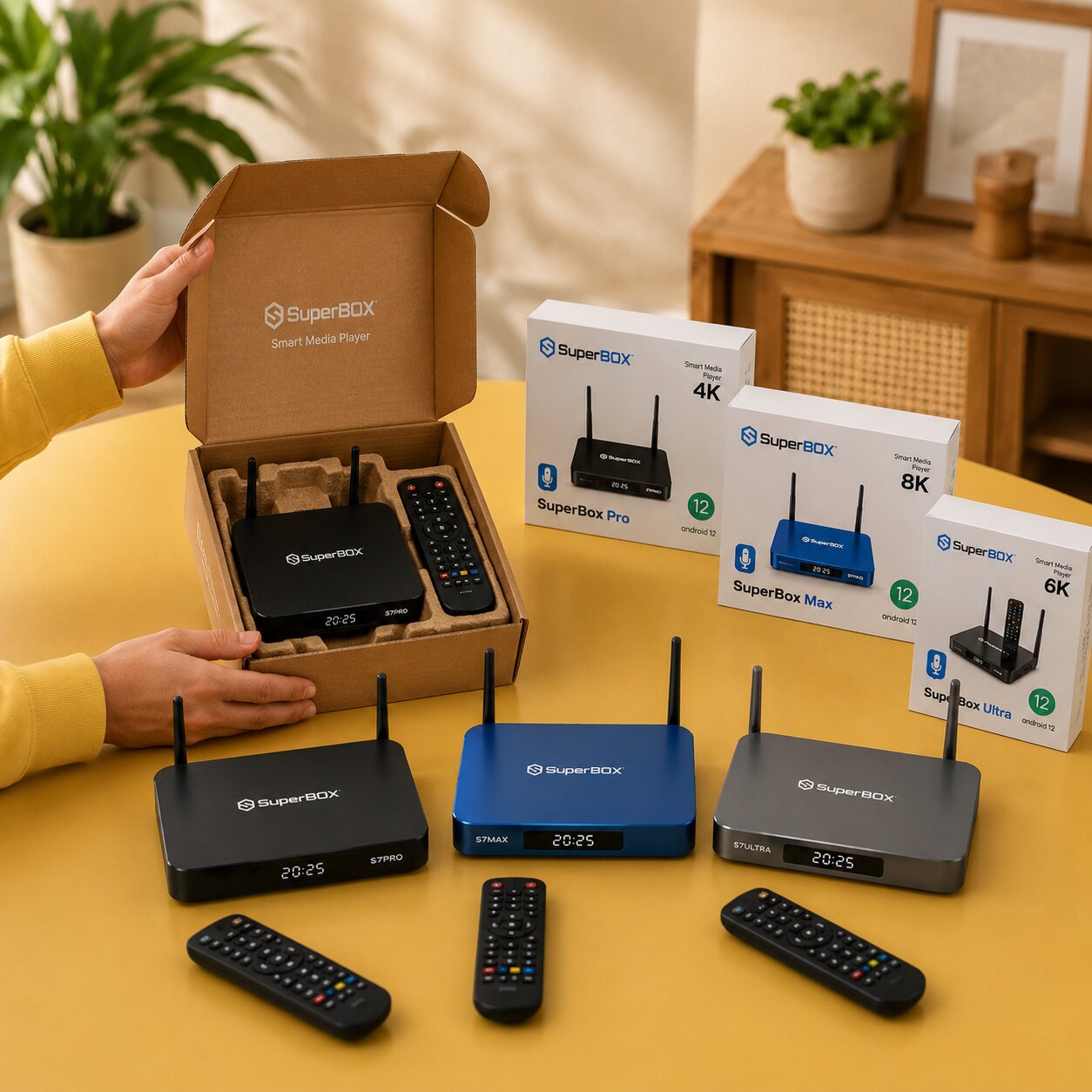
Is the device stuck on the SuperBox logo, experiencing continuous buffering issues, or are apps crashing frequently? Have you forgotten your lock screen password or PIN, preventing access to the device?
Understanding whether your problem is mild (e.g., minor lagging), moderate (e.g., frequent app crashes), or severe (e.g., stuck on boot screen) will guide you to the most effective solution. This assessment is a key step in SuperBox S7 troubleshooting.
Essential Preparations Before Factory Resetting Your SuperBox S7
Before you perform a factory reset on your SuperBox S7, it is vital to take a few preparatory steps to ensure a smooth process.
Always ensure your SuperBox S7 is connected to a stable power supply. An interruption during the reset process can potentially brick your device. Note that a factory reset will erase all user-installed applications, personal settings, saved Wi-Fi passwords, and linked Google accounts.
It will also remove data from apps like BlueTV and BlueVOD. The device’s original firmware (Android 12) will remain, but settings will revert to default. Note down any essential login credentials as all personal data will be irrecoverably lost.
If you anticipate needing a hard reset, have a non-metallic object like a paperclip or toothpick ready. While the reset itself is quick, the subsequent setup and reinstallation of apps will require additional time.
Detailed Guide: How to Factory Reset Your SuperBox S7
Method 1: Factory Reset via System Settings
This method is recommended when your SuperBox S7 is functional, and you can navigate its menus with your remote control.
- From the SuperBox S7 home screen, navigate to and select the Settings icon (gear symbol).
- Scroll down and select Device Preferences.
- In the Device Preferences menu, find and select Reset or Factory data reset.
- Read the warning message carefully, then select Reset again to confirm.
- Finally, select Erase everything to initiate the factory reset process.
- The device will then reboot and begin the reset, which may take several minutes.
Method 2: Hard Reset via Recovery Mode (Pinhole Button Method)
This method is ideal if your SuperBox S7 is unresponsive, stuck on the boot screen, or if you cannot access the settings menu due to a forgotten password.
- Disconnect the power adapter from your SuperBox S7. Locate the small pinhole reset button, usually on the bottom, side, or back of the device.
- With the SuperBox S7 powered off, gently press and hold the reset button using your paperclip or toothpick.
- While continuously holding the reset button, reconnect the power adapter to your device.
- Continue holding the reset button for approximately 10-15 seconds, or until you see the SuperBox logo or an Android recovery menu appear.
- Use your remote control’s navigation buttons to move. Navigate to and select Wipe data/factory reset.
- Confirm your selection by choosing Yes or Factory data reset when prompted.
- After the reset is complete, select Reboot system now to restart your SuperBox S7.
Choosing the Right Method: Which Factory Reset is Best for You?
Deciding between the system settings reset and the hard reset depends entirely on your SuperBox S7’s current state and your specific needs.
For a functional device with a working remote, the Factory Reset via System Settings is your easiest option. It is quick, straightforward, and effective for common performance issues.
For an unresponsive device, forgotten password, or non-working remote, the Hard Reset via Recovery Mode is the go-to solution. This method bypasses software issues and allows you to regain control when standard navigation is not possible.
Important Considerations When Factory Resetting Your SuperBox S7
While a factory reset is a powerful troubleshooting tool, keep these points in mind to ensure a smooth process and avoid common pitfalls.
Forgetting to back up crucial login information is a frequent error. Also, interrupting the power supply during the reset can lead to device damage.
If, after attempting both factory reset methods, your SuperBox S7 still exhibits persistent issues, it might indicate a hardware malfunction. In such cases, contact SuperBox Official Website customer support for further assistance.
Verifying Results and Optimizing Performance After Factory Reset
After successfully factory resetting your SuperBox S7, it is important to verify that the issues are resolved and to take steps to optimize its performance.
The most immediate sign of success is your device booting up to the initial setup wizard. After setup, you should notice improved responsiveness and faster app loading.

Test your device by navigating through menus and opening applications like BlueTV or BlueVOD. If the problem persists, consider re-attempting the hard reset method carefully.
After the reset, reinstall only necessary applications. Check for available firmware updates in the settings menu to keep your Android TV box running the latest software. Regularly clearing the cache can also help maintain optimal performance.
Common Issues During SuperBox S7 Factory Reset and Their Solutions
Device Stuck During Reset
The screen may freeze or the progress bar might not move. This often stems from a power interruption or a minor software conflict. Disconnect the power, wait a few minutes, then attempt the hard reset method again.
Remote Not Working in Recovery Mode
Standard remotes often have limited functionality in the Recovery Mode environment. To navigate, connect a USB mouse or a USB keyboard to your SuperBox S7. These peripherals can typically be used to select options.
“No Command” Error
An Android robot lying down with a “No Command” message may appear. Try pressing and holding the power button and then briefly pressing the volume up button to reveal the full recovery menu.
Problem Persists After Reset
If issues continue after a reset, the underlying problem could be hardware-related or the firmware might be corrupted. If multiple reset attempts do not resolve the problem, contact SuperBox Official Website customer support.
Frequently Asked Questions About SuperBox S7 Factory Reset
What is the difference between a factory reset and clearing the cache on my SuperBox S7?
Clearing the cache removes temporary data to improve performance without deleting personal data, while a factory reset wipes all user data and settings, returning the device to its original state.
Will a factory reset update my SuperBox S7’s firmware?
No, a factory reset will revert your device to its original firmware version, not update it. You will need to check for system updates after the reset.
Can I factory reset my SuperBox S7 without a remote?
Yes, you can perform a hard reset via Recovery Mode using the pinhole button. You might need a USB mouse or keyboard to navigate the recovery menu.
What data is lost during a SuperBox S7 factory reset?
Your device will reboot to the initial setup screen, prompting you to select language, connect to Wi-Fi, and sign in to your Google account.
How to perform a factory reset on SuperBox S7 TV box?
You can do this either through the system settings if your device is functional or via Recovery Mode using the pinhole button for unresponsive devices.
Do I need to re-enter all my app logins after a factory reset?
Yes, you will need to sign back into your Google account and all your streaming applications like BlueTV and BlueVOD.
Is it safe to factory reset my SuperBox S7?
Yes, it is a safe and common troubleshooting step, provided you ensure stable power and understand that your data will be erased.
Will a factory reset fix buffering issues on my SuperBox S7?
Often, yes. A factory reset can resolve software-related buffering issues by clearing out corrupted data and optimizing system performance.
What happens after factory reset SuperBox S7?
Your device will reboot to the initial setup screen, prompting you to select language, connect to Wi-Fi, and sign in to your Google account.
Conclusion and Recommendations for Your SuperBox S7
Successfully factory resetting your SuperBox S7 involves understanding your device’s issue, choosing the appropriate method, and diligently following the steps.Always prioritize backing up essential login information before you begin. For new users, start with the Factory Reset via System Settings. If your device is unresponsive, use the Hard Reset via Recovery Mode.
Remember to monitor your device’s performance post-reset and keep it updated. Bookmark this guide for future reference and do not hesitate to contact SuperBox Official Website support if persistent issues arise.